
What is Apple DEP?
In short: DEP, the Device Enrollment Program, is Apple's original name for automatic enrolment of company-owned iPhones, iPads and Macs. Apple now calls this Automated Device Enrollment. It is part of Apple Business, which replaced Apple Business Manager on 14 April 2026. Devices registered to your organisation and assigned to your device management service enrol automatically when they are first set up, so IT does not need to prepare each device by hand.
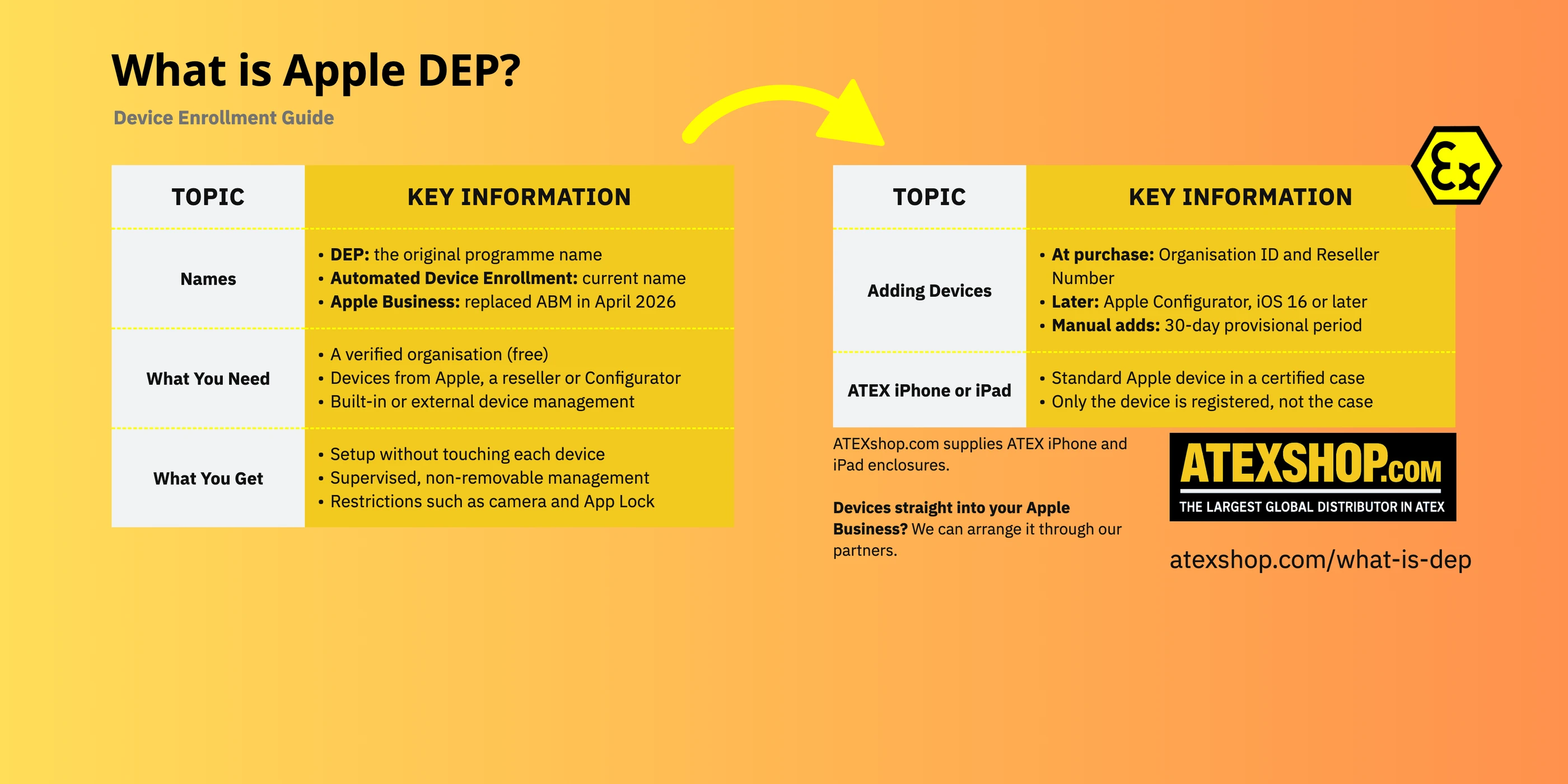
This page explains how it works today, what you need, and what it means for ATEX iPhones and iPads used in hazardous areas.
From DEP to Apple Business
- Device Enrollment Program (DEP): part of Apple's deployment programmes. Apple's own DEP guides date from 2014 onwards.
- Apple Business Manager (2018): Apple brought DEP and the Volume Purchase Program together in Apple Business Manager and asked existing DEP customers to upgrade. Apple later began calling the enrolment function Automated Device Enrollment.
- Apple Business (14 April 2026): Apple combined Apple Business Manager, Apple Business Essentials and Apple Business Connect into one service, Apple Business. It is free and includes a built-in device management service. Apple Business Manager is no longer available as a separate product.
Many websites still use the older names DEP and Apple Business Manager. Where they describe automatic enrolment, they mean what Apple now calls Automated Device Enrollment in Apple Business.
Key terms
| Automated Device Enrollment | The current name for what DEP did: devices owned by your organisation enrol automatically in device management during setup. |
| Apple Business | Apple's free web service for organisations, where you manage devices, apps and Managed Apple Accounts. Schools use Apple School Manager. |
| Device management service (MDM) | The service that configures and manages the devices. This can be the built-in service in Apple Business or an external MDM. |
| Supervision | A mode that generally indicates the device is owned by the organisation and gives the organisation extra control over it. iPhones with iOS 13 or later and iPads with iPadOS 13.1 or later are supervised automatically when enrolled through Automated Device Enrollment. |
| Organisation ID | Your organisation's unique identifier in Apple Business. You give it to a participating reseller so it can submit your devices. |
| Reseller Number | The identifier of a participating Apple Authorised Reseller or carrier. You add it to your list of approved device suppliers in Apple Business. |
How Automated Device Enrollment works
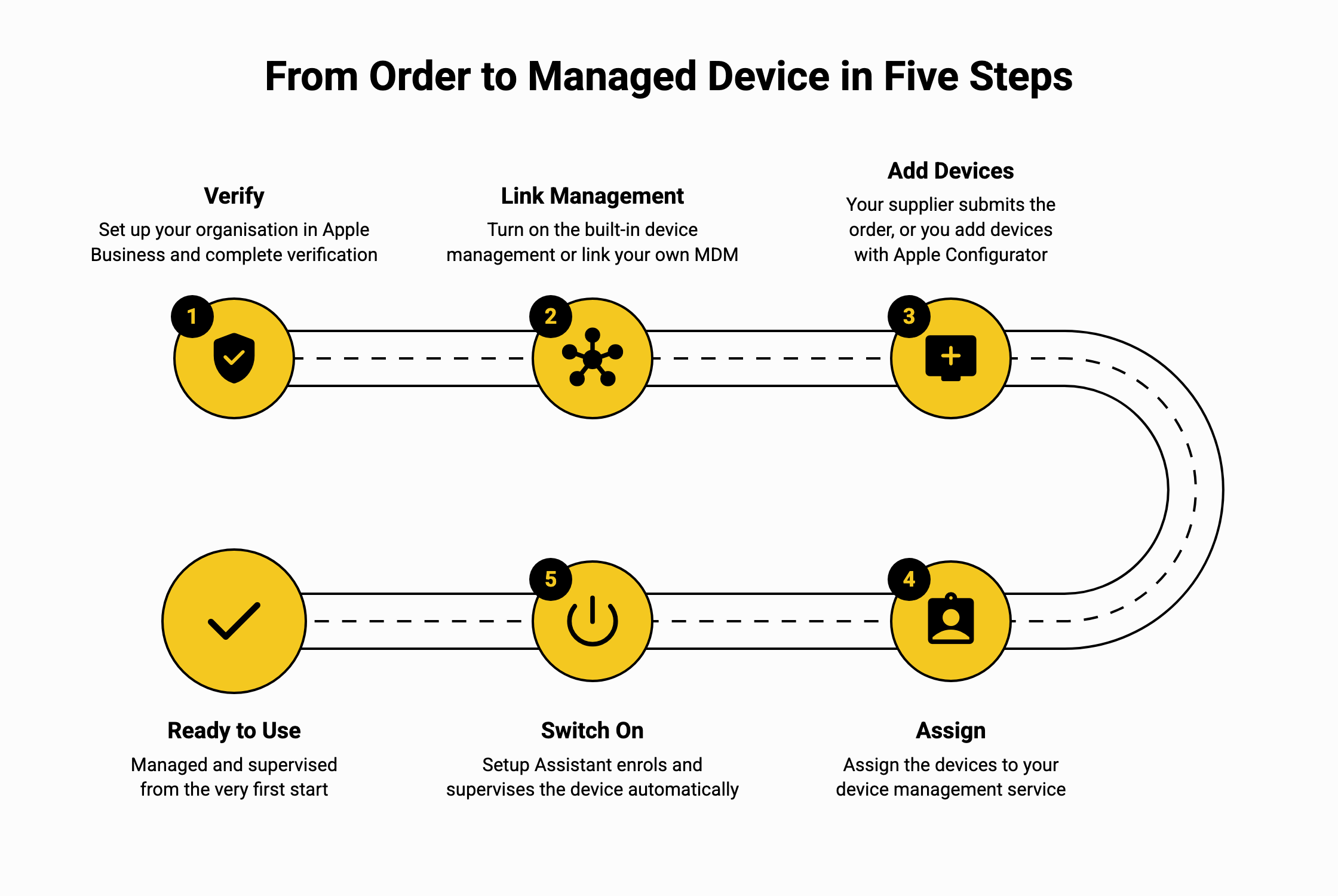
- Set up and verify your organisation in Apple Business.
- Turn on device management: use the built-in device management service or link an external MDM. Devices can only be assigned once one of these is in place.
- Add devices: link your Apple Customer Number or your reseller's Reseller Number in Apple Business, so devices you buy appear once the supplier submits them, or add devices yourself with Apple Configurator.
- Assign the devices to your device management service.
- Switch on: during Setup Assistant the device enrols automatically and receives your settings and apps.
What you need
- A verified organisation. Signing up is free. Apple asks for two verification methods, to be completed within 60 days; verification can take up to five working days, or longer at busy times. Options include a Business ID (for the Netherlands, for example, the KVK number or VAT number; a D-U-N-S number is one option, not a requirement), domain validation with a DNS record, App Store Connect, or an official document.
- A first administrator who is a named person, with an email address that is not already used as an Apple Account.
- Eligible devices. Devices can be added at purchase when they are bought from Apple with a verified Apple Customer Number, or from a participating Apple Authorised Reseller or carrier that links them to its Reseller Number. You add that Reseller Number as an approved supplier, and the reseller then has to submit your orders: this does not happen by itself. Devices bought elsewhere can be added with Apple Configurator.
- A device management service: the built-in service in Apple Business, or an external MDM.
Apple notes that obsolete devices may work but are not supported for Automated Device Enrollment. Check older iPhone and iPad models against Apple's information on vintage and obsolete products.
Adding devices you already have
iPhones and iPads that were not added at purchase can be added with Apple Configurator. This erases the device, so back up any data first:
- Apple Configurator for iPhone (iOS 16 or later) adds an iPhone or iPad with iOS 16 or iPadOS 16 or later without a cable. The device must be at the "Choose a Wi-Fi Network" screen of Setup Assistant. You pair it by scanning the image on its screen or entering a six-digit code. The device is then erased and shut down, and appears in Apple Business.
- Apple Configurator for Mac adds an iPhone or iPad connected to the Mac with a cable, and Apple TV models with Ethernet. A device that is already in use must be signed out of iCloud with Find My turned off, and it is erased.
Devices added this way are supervised and enrolled like any other device. For 30 days after they are assigned and enrolled, the user can still release the device from Apple Business, supervision and device management (the provisional period).
What you get with Automated Device Enrollment and supervision
- You can prevent the user from removing the device management enrolment.
- The device can be held in Setup Assistant until critical settings and apps are installed.
- Many Setup Assistant screens can be skipped, depending on your device management service. The Remote Management screen cannot be skipped.
- Restrictions such as hiding the App Store, preventing Erase All Content and Settings, or locking the device to a single app (App Lock).
- The camera can be turned off, for example where a site does not allow photos.
- Activation Lock can be managed by the organisation, and the organisation can turn it off for devices it owns.
Apple DEP for ATEX iPhones and iPads
The ATEX iPhones and iPads covered here are a standard iPhone or iPad inside a certified enclosure, such as the Xciel XCiPhone for Zone 2, the XCZ1 for Zone 1 or the Armadex Ex UniCase for iPad. Apple Business records the iPhone or iPad itself, by its serial number. The enclosure is not registered, so the enrolment steps are the same as for any other company iPhone or iPad. The practical points below cover what to plan for with an enclosure.
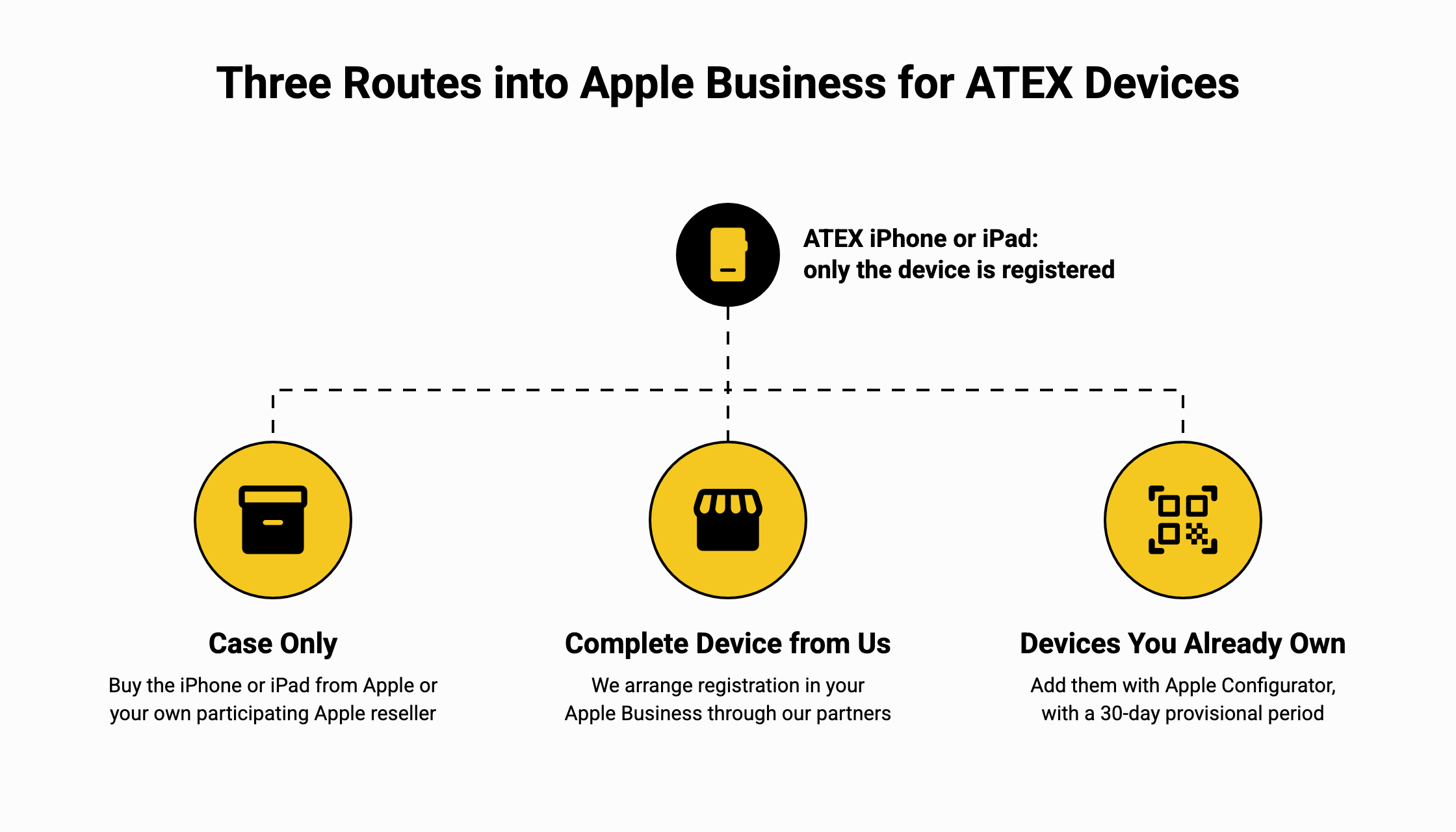
- Case only: buy the enclosure from us and the iPhone or iPad from Apple or your own participating Apple reseller. The device is then submitted to Apple Business in the usual way.
- Complete device from us: we can arrange, through our partners, for the iPhones and iPads you order to be added to your Apple Business. Mention your Organisation ID when you request a quote. As with any reseller, the supplying partner's Reseller Number also needs to be added as an approved supplier in your Apple Business; we will tell you which number to add.
- Devices you already own: if they were bought from Apple or a participating Apple reseller, ask that supplier whether it can still submit them to your Apple Business. Otherwise add them with Apple Configurator; the device is erased when it is added, and the 30-day provisional period applies. Where possible, add the device and complete setup before it is fitted in the enclosure.
Practical points for hazardous areas:
- On the Xciel XCZ1 Zone 1 models we supply, a SIM card cannot be added once the device is in the case. Send the SIM in advance or use an eSIM.
- Some ATEX enclosures fit older iPhone and iPad models. Check these against Apple's list of obsolete products before planning automatic enrolment, and note that Apple Configurator for iPhone can only add devices running iOS 16 or iPadOS 16 or later.
- Do any setup that needs a cable, and any opening of the enclosure, outside the hazardous area and in line with the enclosure's instructions.
- For shared or single-purpose devices, for example a tablet per shift, App Lock can limit the device to one app, and the organisation can turn off Activation Lock when a device is reassigned.
Using Android devices? Read What is zero-touch enrollment? Browse our ATEX phone cases and ATEX tablet cases.
Frequently asked questions
Does Apple DEP still exist?
Not under that name. The function is now called Automated Device Enrollment and is part of Apple Business, which replaced Apple Business Manager in April 2026.
Is Apple Business free?
Yes. Apple Business, including its built-in device management service, is free. Some extras, such as additional iCloud storage and AppleCare+ for Business, are paid and, according to Apple, offered only in the United States. An external MDM, if you use one, has its own costs.
Do I still need an MDM such as Jamf or Intune?
Not necessarily. Apple Business has its own device management service. You can still link an external MDM if your organisation already uses one.
Is a D-U-N-S number required?
No. A D-U-N-S number is one of the accepted Business IDs. Dutch organisations can, for example, use their KVK number as one of the two verification methods.
Can users remove management from their device?
Not when the device was added at purchase and the organisation prevents unenrolment. For devices added with Apple Configurator, the user can release the device during the 30-day provisional period.
Does the ATEX enclosure affect enrolment?
Not for registration. Apple Business records only the iPhone or iPad, by its serial number. In practice, plan the timing: where possible, add the device, complete setup and fit any SIM before it goes into the enclosure. Questions about ATEX iPhones or iPads for your organisation? Contact us.